Setting up
The first hour with a new laptop: charger marks, battery and backup
Charger certification marks, battery habits that decide year three, the bilingual keyboard question, power settings, and a backup set up on day one.
The first hour with a new machine is the only hour when every setting is still at its default and nothing has been built on top of it. Five decisions made in that hour quietly determine how the laptop behaves for years, and four of them take under 10 minutes each.
None of this is about brand or model. It applies to any laptop bought in Canada, and each claim below comes from a published Canadian government page listed at the end.
Check the charger's certification mark before you plug it in
Health Canada's guidance on lithium-ion batteries is specific about chargers: use the one that came with the device, and if you replace it, buy from a trusted source and check that the voltage and current match. It names the marks that indicate compliance with Canadian electrical safety standards — CSA, cUL and cETL among them — and says plainly that chargers without a recognized mark do not meet those standards and may cause shock or fire.
The scale of the problem is published. In the consultation notice for proposed new requirements under the Canada Consumer Product Safety Act, Health Canada reports that its Consumer Product Safety Program received 924 lithium-ion battery incident reports between 2013 and 2023. Of those, 266 — 28.8% — involved injuries, including 3 fatalities.
The practical step takes about 30 seconds. Turn the charger brick over, read the moulded or printed marks, and confirm the output voltage and amperage match the figures on the laptop's own plate. A generic replacement bought later is where this check earns its keep.
- Read the marks on the charger body and look for CSA, cUL or cETL
- Match the output voltage and amperage to the figures printed on the laptop
- Charge the machine where you can see it, at room temperature, on a hard surface
- Keep it off beds, couches and anything else that traps heat around the brick
- Do not charge for longer than the manufacturer says, and keep it clear of exit doors
- Treat the old battery as hazardous waste rather than household rubbish when it is replaced
Battery habits that decide what year three feels like
Health Canada's storage guidance is short and worth following literally: store batteries at room temperature. A laptop left in a car through a Canadian January, or on a windowsill through an August afternoon, is being stored at neither.
Most laptops sold now expose a charge limit in firmware or in the manufacturer's own utility. Capping the charge at 80% for a machine that lives on a desk reduces the time the cells spend at full charge, which is the condition that ages them fastest. A machine that travels is the opposite case and wants the full charge.
The disposal line matters too. Batteries count as hazardous waste and do not belong in household garbage; Health Canada directs people to their municipality's collection route. That is worth knowing on day one rather than on the day the battery swells.
| How the laptop lives | Charge setting | Why |
|---|---|---|
| Permanently on a desk, mains connected | Cap at 80% | Cells spend less time at full charge |
| Mixed desk and travel | Cap at 80%, release before trips | Full capacity only when you need it |
| Away from outlets most days | Charge to 100% | Capacity is the binding constraint, not longevity |
| Stored unused for months | Around 50%, at room temperature | Neither full nor flat while idle |
The 80% and 50% figures are the settings most firmware offers. The reasoning is about time spent at a state of charge, not about cycle counts.
The bilingual keyboard question, answered once
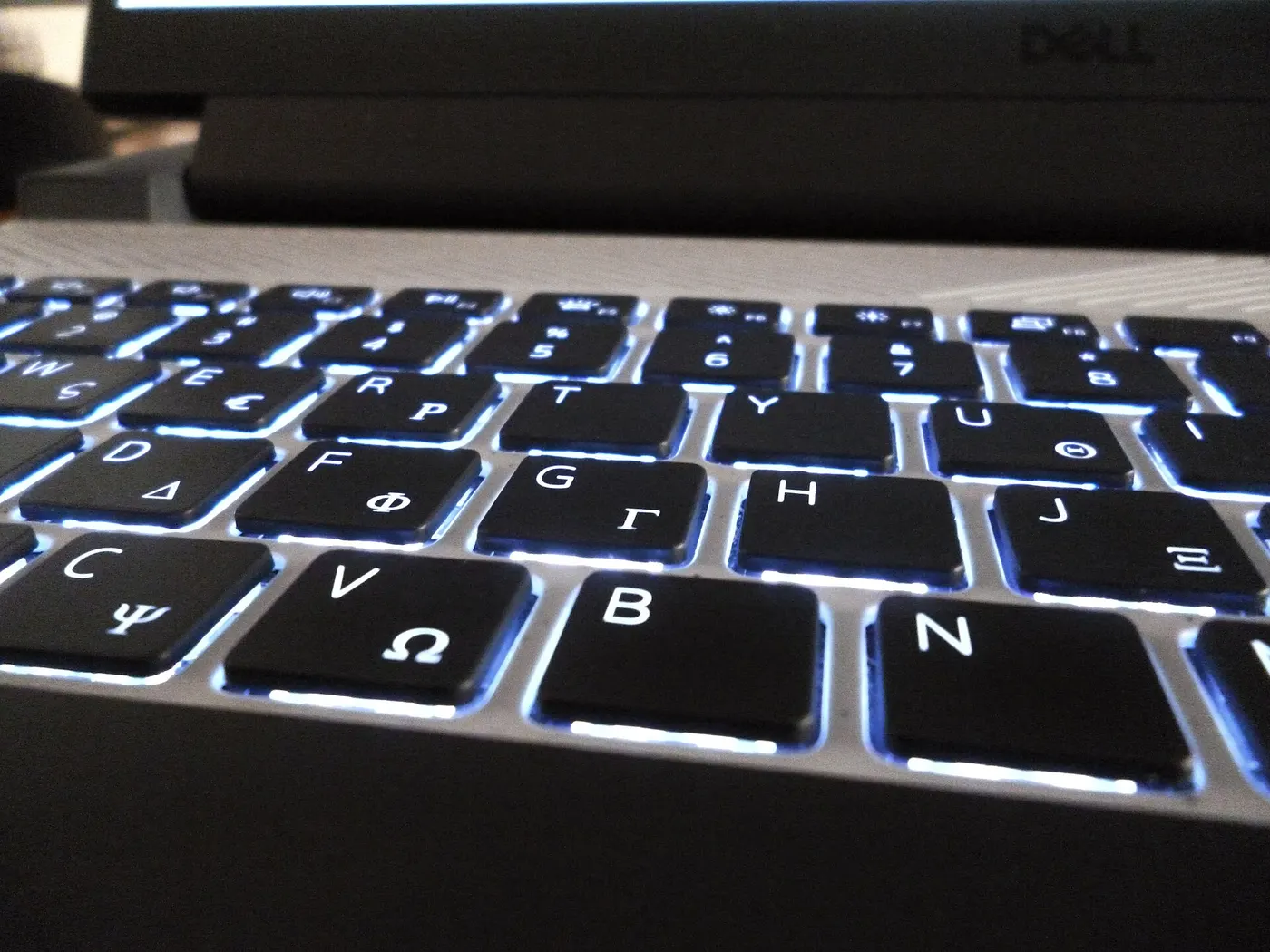
Laptops sold in Canada ship with one of two physical layouts: the plain US English layout, or the Canadian Multilingual Standard layout with its extra keys and accented characters. They are not interchangeable, and swapping the software layout does not relabel the keys.
If you type in French regularly, the multilingual layout saves the accent compositions you would otherwise perform with key combinations several dozen times a day. If you do not, the US layout has a larger Enter key and one fewer key beside the left shift, and nothing is lost.
The one thing to check before ordering is the photograph of the actual keyboard rather than the product name. A listing can say 'bilingual' while the picture shows a US layout, and the keyboard is the part of a laptop you cannot change without replacing the whole top case.
Power settings are the only energy control you are given
There is no EnerGuide label on a computer. Natural Resources Canada's EnerGuide labelling is mandatory for eight appliance categories and voluntary for five more, and computers are in neither group, so the only energy figure attached to a laptop is the ENERGY STAR certification — which, where present, Natural Resources Canada puts at 25% to 40% less energy than a standard model on average.
That leaves the sleep settings as the lever you actually control. Take a machine drawing an average 30 watts: used 8 hours a day it consumes 87.6 kWh a year, which at an assumed 15 cents per kWh is $13.14. Left awake 24 hours a day it consumes 262.8 kWh and $39.42 on the same rate.
The difference is $26.28 a year, achieved by setting the display to sleep after 5 minutes and the machine after 20. That single change is worth more than any specification choice on the energy line, and it takes about 2 minutes.
| Pattern | kWh per year | Cost per year |
|---|---|---|
| 8 hours a day, sleeps otherwise | 87.6 kWh | $13.14 |
| 12 hours a day | 131.4 kWh | $19.71 |
| Awake 24 hours a day | 262.8 kWh | $39.42 |
Each row is 30 watts multiplied by the hours, by 365 days, divided by 1,000. The 30 watt average and the 15 cent rate are assumptions; your own bill and a plug-in meter give the real pair.
Set up the backup before there is anything to lose
A backup configured in the first hour protects an empty machine, which feels pointless and is exactly why it works: there is no 'later' at which it becomes convenient. Twenty minutes on day one covers everything that arrives afterwards.
The arrangement worth aiming at is three copies of anything that matters, on two different kinds of media, with one of them somewhere else. On a laptop that usually means the working copy on the internal drive, a scheduled copy to an external drive, and a synced or offsite copy for the folders you cannot lose. Two of those three are free of ongoing cost.
Test the restore once, in the first week, with a single file. A backup that has never been read back is an assumption rather than a backup, and the week you discover that is always the wrong week.

Before you buy
- Read the charger for a CSA, cUL or cETL mark and match its output to the laptop's plate
- Charge on a hard surface at room temperature where you can see the machine
- Set the firmware charge limit to match how the laptop will actually live
- Confirm the physical keyboard layout from the photograph, not the product name
- Set the display to sleep after 5 minutes and the system after 20 minutes
- Configure a scheduled backup to an external drive in the first hour
- Restore one file from that backup within the first week to prove it works
- Note your municipality's hazardous waste route for the battery before you need it
Questions readers ask
- Is a third-party charger ever safe to use?
- Health Canada's position is that a replacement should come from a trusted source, carry a recognized Canadian certification mark such as CSA, cUL or cETL, and match the device's voltage and current. A charger meeting all three is fine. One with no mark at all does not meet Canadian electrical safety standards, and the guidance warns it may cause shock or fire.
- Does capping the charge at 80% waste capacity?
- It trades it. You give up a fifth of the runtime on any given day in exchange for the cells spending far less time at full charge. For a machine that sits on a desk connected to mains power, that runtime was never being used. For one that spends days away from an outlet, release the cap before you travel.
- Where do I dispose of a swollen or dead laptop battery?
- Through your municipality's hazardous waste route, not the household garbage. Health Canada classifies batteries as hazardous waste and directs people to municipal collection for safe disposal. A swollen battery should also be kept away from heat and from anything flammable until it goes, and the laptop should not be charged in the meantime.
- How long does this whole first-hour routine take?
- About 45 minutes end to end: 30 seconds on the charger marks, 2 minutes on power settings, 5 minutes on the charge limit and keyboard layout, and the rest on the backup, which is the only part that is not nearly instant. Everything except the backup can be done before the machine finishes its first update.
Sources
- Health Canada — lithium-ion battery safety: charging, storage, certification marks and disposal — checked 2026-11-03
- Health Canada — notice of intent on proposed requirements for products containing lithium-ion batteries (924 incident reports, 2013 to 2023) — checked 2026-11-03
- Natural Resources Canada — EnerGuide label for appliances and room air conditioners (computers are not a labelled category) — checked 2026-11-03
- Government of Canada — recalls and safety alerts register — checked 2026-11-03
Some links on this site can earn us a commission. That does not change which product a guide recommends, and it adds nothing to your price. Advertising is not enabled on this site yet. When it is, ads will be labelled and kept visually separate from the guides.